

OmniStudio Finder
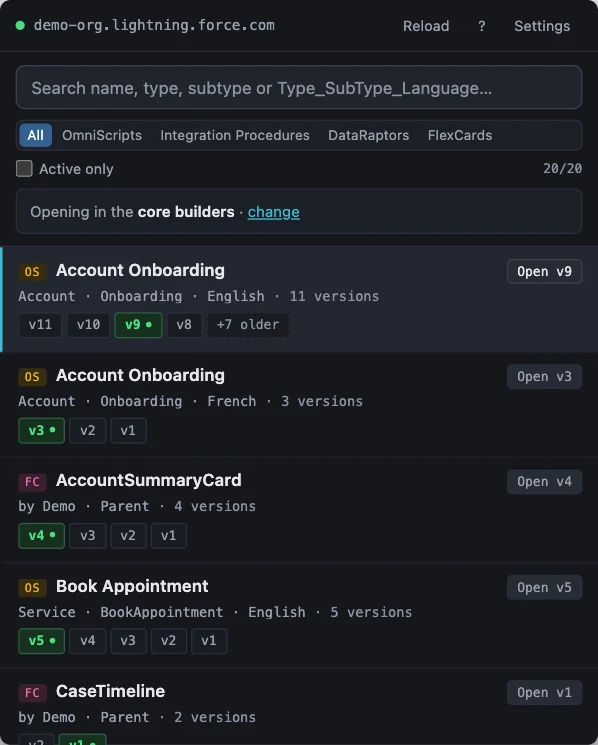
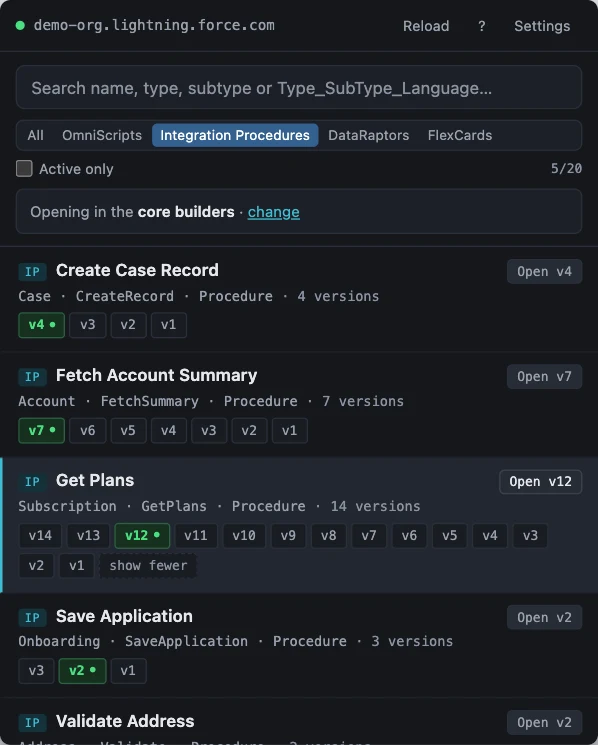
Find OmniScripts, Integration Procedures, Data Mappers and FlexCards in your Salesforce org, browse the available versions and open the one you need.
Add to Chrome Source on GitHub
See it in action
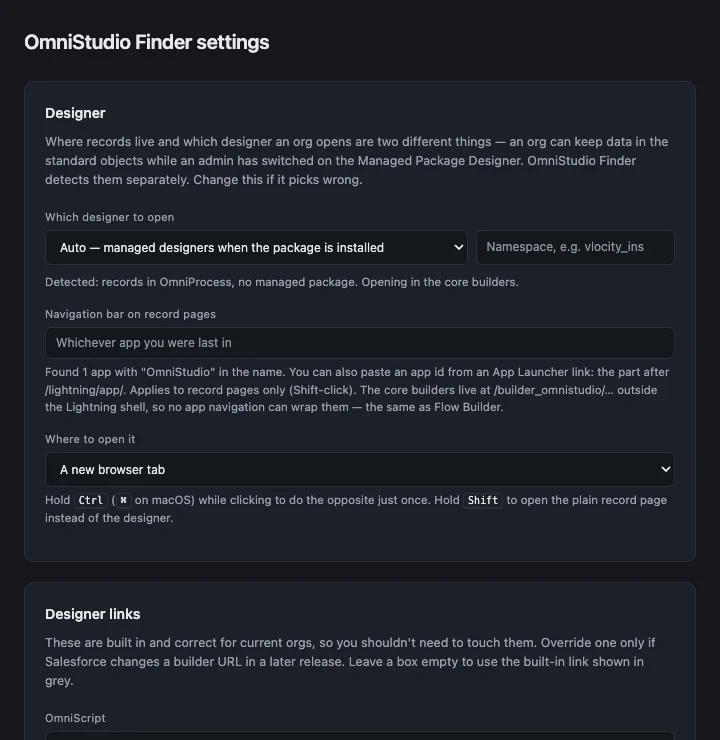
Select a screenshot to enlarge it.
What it does
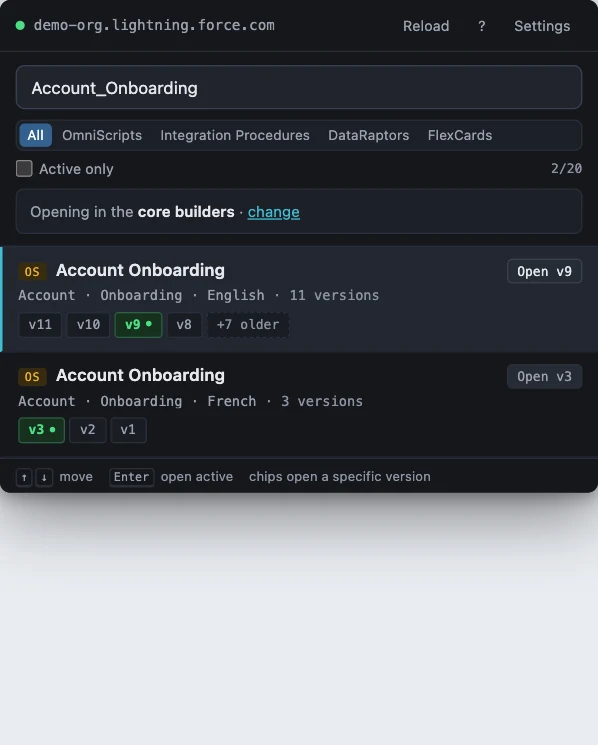
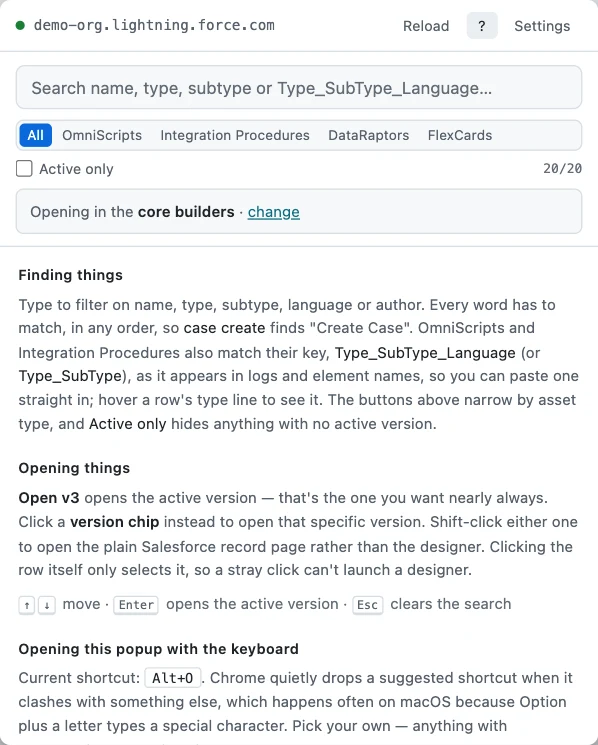
- Search your current org. Filter by name, type, subtype, language or author as you type.
- Search with a key. Paste
Type_SubType_Languagefrom a log and that script comes first. - Browse versions. Each version has its own chip, and the active version is marked in green.
- Open the designer. Press Enter to open the active version, or click a version chip to open another one. Finder supports both core and Vlocity managed-package designers.
Get started
- Install the extension and sign in to your Salesforce org.
- Open Finder from the browser toolbar while a Salesforce tab is active.
- Search for a component, then open its active version or choose another version chip.
Compatibility and privacy
Use the extension in Chrome with core OmniStudio or a Vlocity managed package.
Finder uses your Salesforce session to query your org. The session cookie is held in memory while the popup is open and is never saved to extension storage. Read the privacy policy.
Help and feedback
Found a bug or have an idea? Open an issue on GitHub or email me.
If this extension has saved you time, you can buy me a coffee ☕.